
Define your reinforcement
Choose the bar types, spacing and arrangement available in the member tool. Save the settings as a named preset.
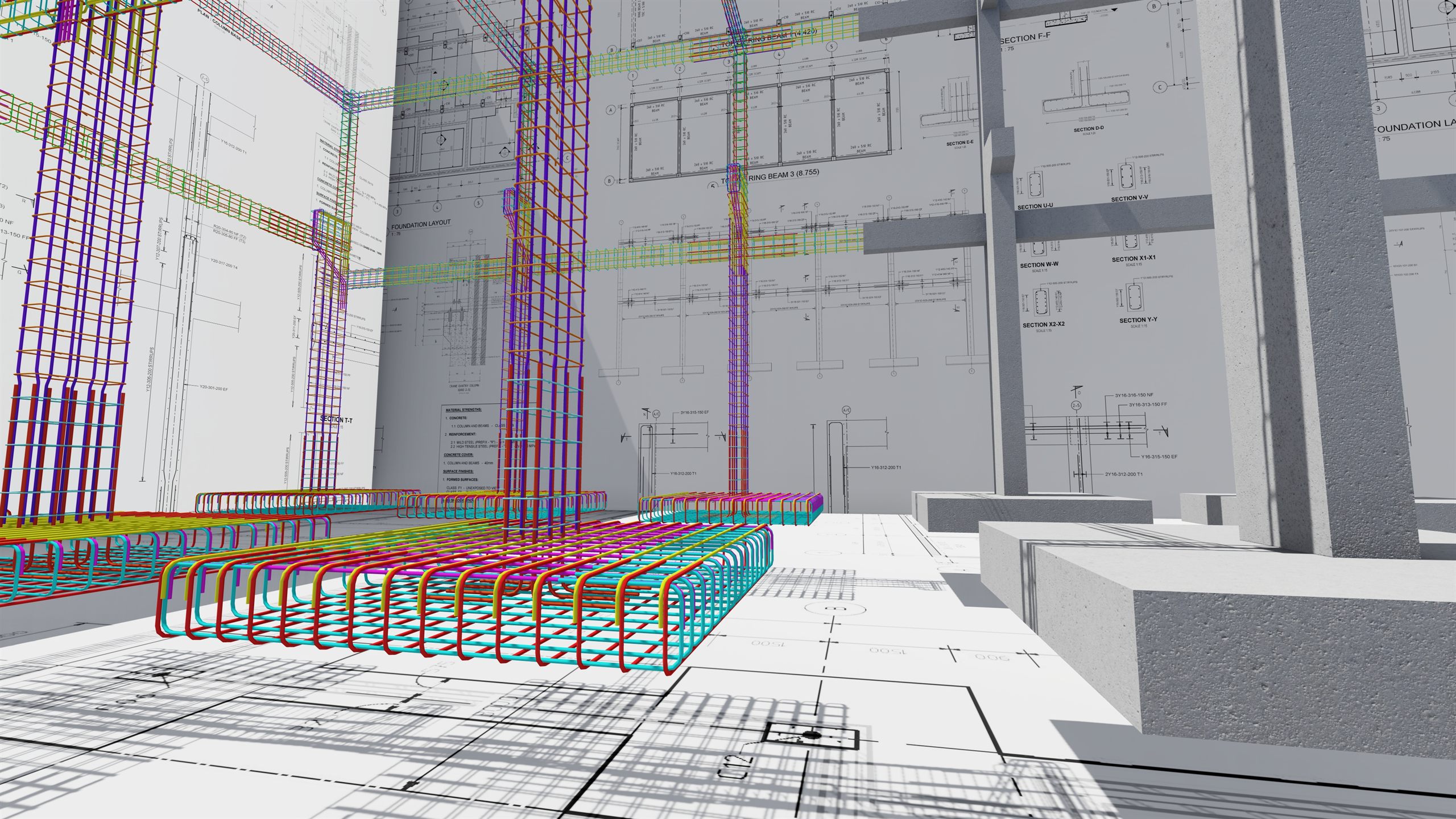
From Your First Bar to Your Final Schedule.
Your detailing decisions are worth keeping. A preset saves the rules a reinforcement command follows, so the next member starts with your settings already in place.
Choose the bar types, spacing and arrangement available in the member tool. Save the settings as a named preset.
Select the preset when creating reinforcement. The command uses those settings to build the cage for the supported member you choose.
Export and import presets with Preset Manager. Build a reusable library of reinforcement settings instead of entering them again.
Import Standards brings in reinforcement shapes, bar types, annotation resources, schedule templates and presets from the country template. Your tools and saved rules have the resources they need.
Let Elemento do the repetitive placement. Pick a supported member, choose your preset and create its reinforcement with a dedicated command.
Build reinforcement for beams, curved beams, columns, walls, slabs and floors, pad footings, column starter bars, and slab or wall openings.
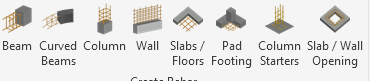
From stirrup zones and longitudinal bars to slab mesh and opening reinforcement, keep your settings together and let the member tool handle the placement.
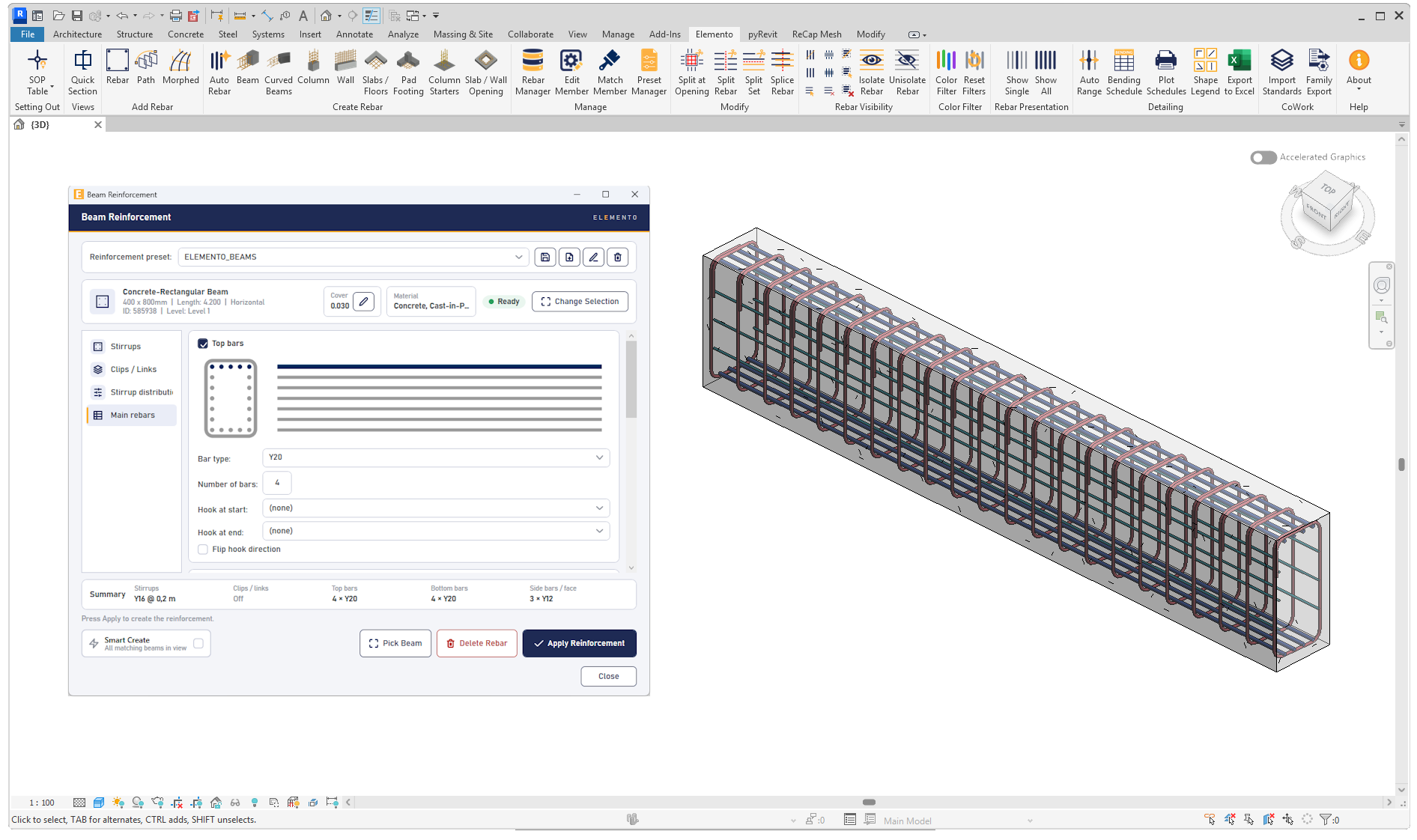
Create stirrups, spacing zones and longitudinal bars. Use the dedicated Curved Beams tool for reinforcement that follows the arc.
Control column verticals, ties and confinement zones, or build wall mesh on one or both faces with spacing by direction.
Build footing mats, add column starters and reinforce rectangular openings with trimmers, edge U-bars and corner diagonals.
Choose the supported member types in the active view and a preset for each. Create their reinforcement in one operation, grouped into one undo step. Types you leave unticked stay untouched.
Combine automated member reinforcement with manual placement wherever your detail needs it. Keep working from the same Elemento tab.
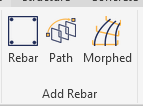
Revit’s native placement tools, ready alongside Elemento’s automation.
Place individual reinforcement using Revit’s shape browser and sketch tools when the detail calls for your own arrangement.
Use Revit’s native free-form reinforcement tools for placement that follows the geometry of your detail.
Openings, joints and revisions are part of the job. Elemento gives you focused tools to adjust reinforcement already in the model and cut down repetitive editing.
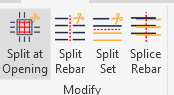
Cut bars around an opening and pull their new ends back by cover.
Cut bars at a point, detail line or reference plane and keep both pieces.
Divide a set between bar positions without changing the bar lengths.
Create a lap with control over lap length, offset and alternate-bar stagger.
Reopen reinforcement settings with Edit Member. Use Match Member to copy an arrangement to compatible members of the same kind, and Rebar Manager to find the members you need.
A busy reinforcement model should not slow you down. Switch visibility states, select the steel you need and focus on one host with dedicated commands that make everyday modelling and navigation faster.
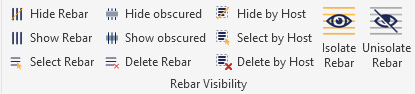
Use Hide Rebar and Show Rebar to switch between the concrete model and its reinforcement. Show obscured bars through their host when you need to inspect them, then hide obscured bars again.
Select Rebar gathers reinforcement in the active view. Select by Host narrows the selection to a picked member, saving repeated individual bar selections.
Isolate Rebar focuses the view on a member and its hosted elements. Work on the reinforcement, then use Unisolate Rebar to return to the wider model. Hide by Host clears one member’s reinforcement from the view.
Use Delete by Host for a picked member, or Delete Rebar for reinforcement visible in the active view. Choose the scope that matches the change you are making.
Rebar Manager brings members reinforced by Elemento into one working list. Find the element, review its reinforcement and reopen its settings to make the changes your model needs.
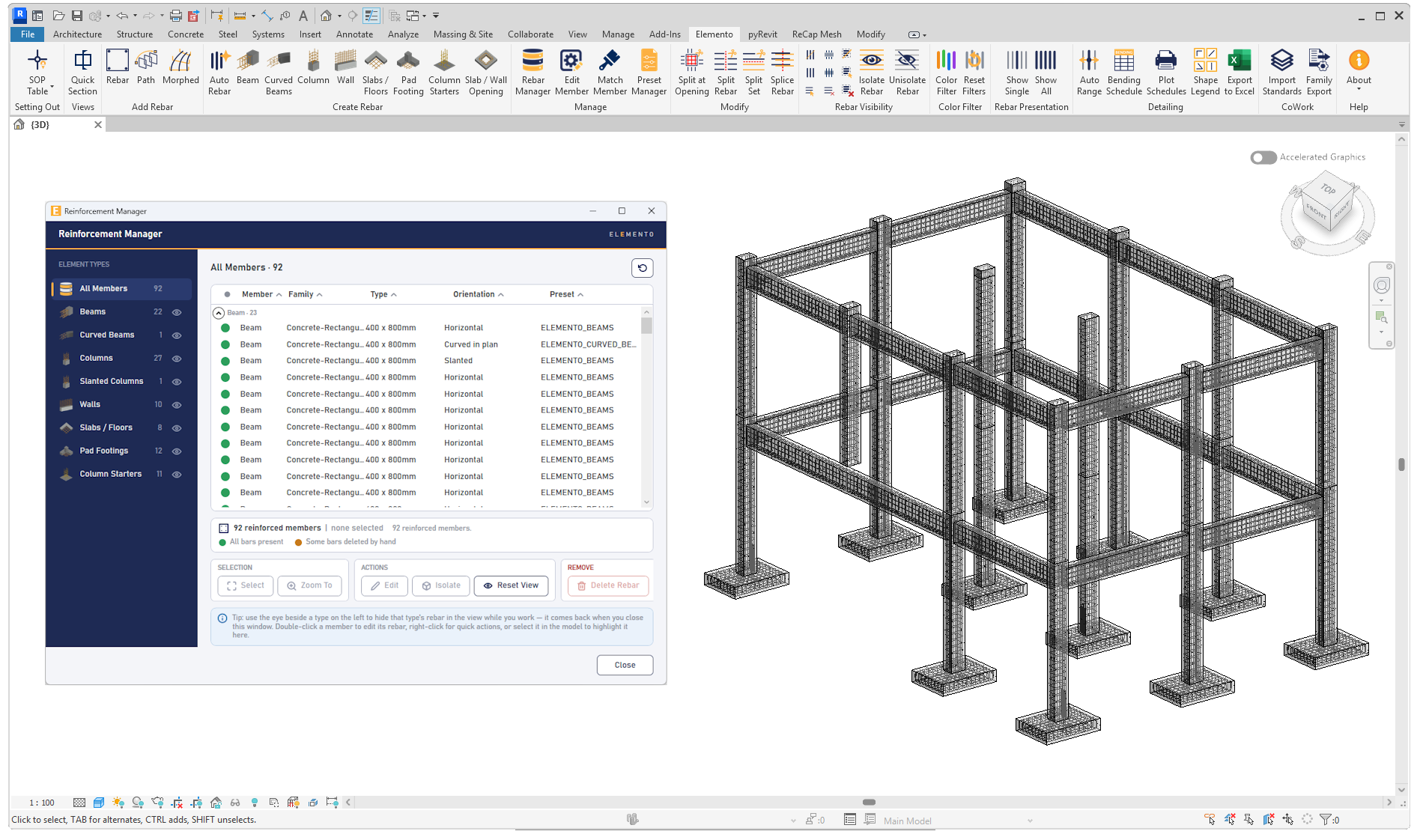
Filter the list by element type and review each member’s family, type and recorded preset. Select or zoom to a member directly from the manager.
Double-click a member or choose Edit to open its reinforcement tool. Adjust its settings and reapply the generator to replace the reinforcement it previously created.
Status indicators show whether all recorded bars are present or some are missing. See which members need attention before continuing with a revision.
Use the row menu to select, zoom to, edit or isolate the member, reset the view, or delete its Elemento-generated reinforcement. Keep the member and its reinforcement changes connected throughout the modelling workflow.
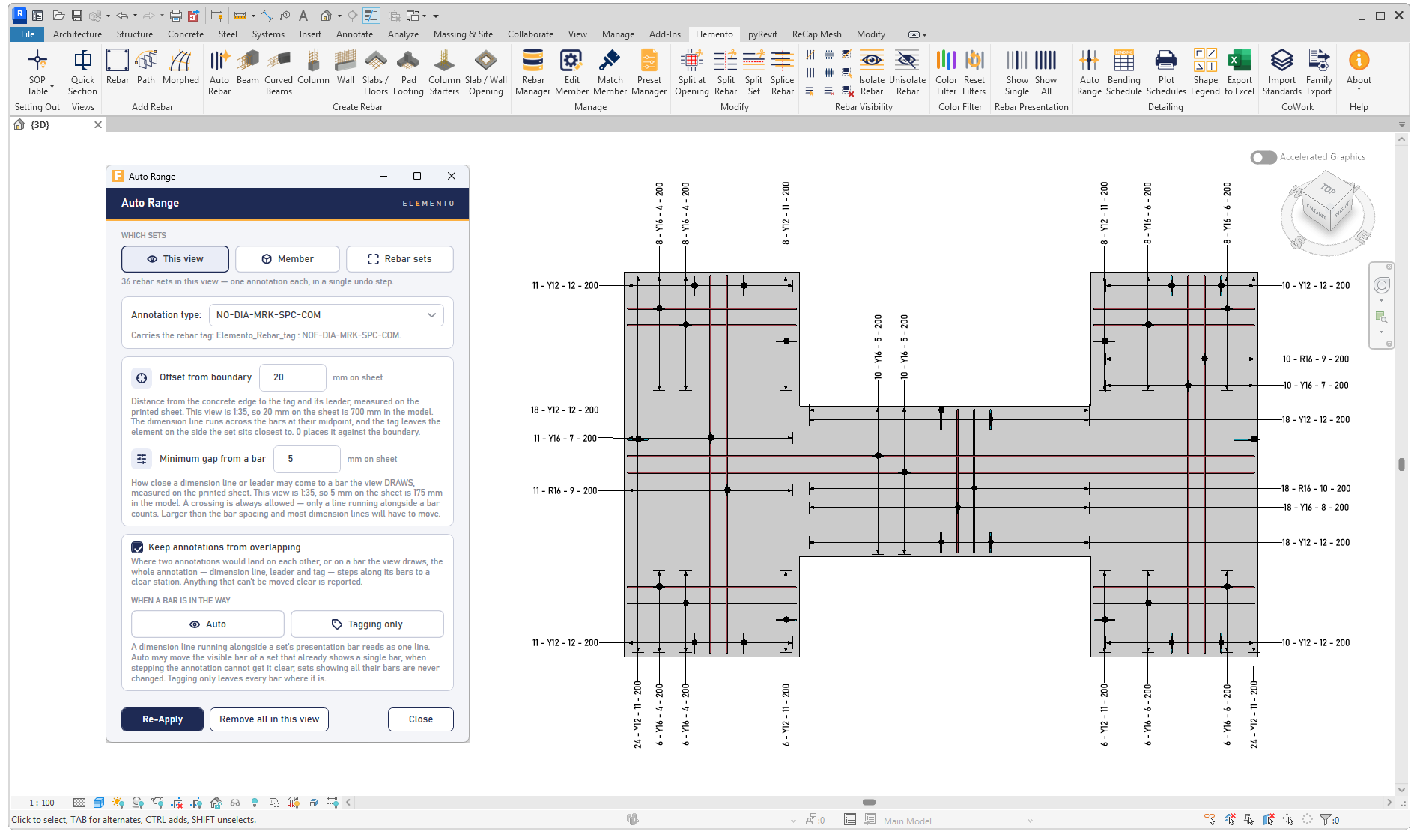
Carry your model into the detail. Annotate the reinforcement you have created with consistent callouts that communicate the arrangement clearly.
Auto Range places aligned multi-rebar annotations using offsets from the host boundary. Apply consistent tag placement across selected sets and keep your drawings organised.
Prepare the view with Quick Section and parameter-based colour filters. Show Single displays a representative bar from each set for a clearer detail; Show All restores the full sets.
Automate the generation and editing of bending schedules, then let Elemento arrange them on sheets. Keep the reinforcement information connected to the Revit model throughout.
Create native Revit bending schedules by reinforcement partition, bringing together bar marks, shape codes and bending dimensions from the model.
Manage partitions and change a scheduled row’s bar type with the diameter control. Work on the underlying reinforcement directly from the bending schedule interface.
Choose your schedules and their order, then run Plot Schedules. Elemento splits and arranges them within the configured drawing area, continuing onto further sheets as needed.
Export selected partitions to Excel, with a worksheet for each partition. Take the reinforcement information from the model through to the people who need it.
Start with country-standard reinforcement shape codes and 100+ special pre-programmed shapes included with Elemento. Spend less time building shape families and more time detailing your project.
Build on Revit’s native reinforcement with shape-code resources for the supported country standard. Import Standards brings the library into your project, ready to use in your reinforcement workflow.
Go beyond the standard shape tables with more than 100 special pre-programmed reinforcement shapes. They are supplied out of the box, so you can start with an existing shape instead of creating each family from scratch.
New shapes are added with every new Elemento release, giving you a growing library for the reinforcement details you need to model.
Elemento builds on Revit’s native reinforcement tools with country-specific shape libraries and scheduling resources. Bring the local shape codes and bending conventions into the same workflow as your model.
SANS 282 — South Africa
The current country template supplies reinforcement resources through Import Standards.
BS 8666 — British standard
Planned for a future country release, alongside additional regional standards.
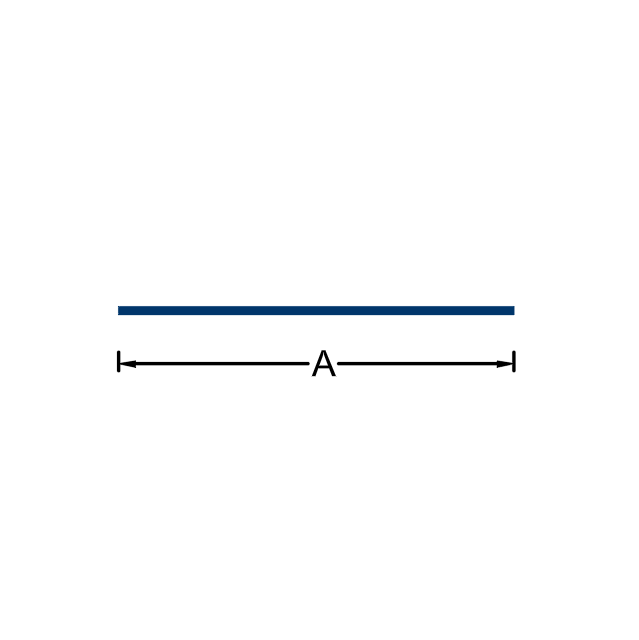
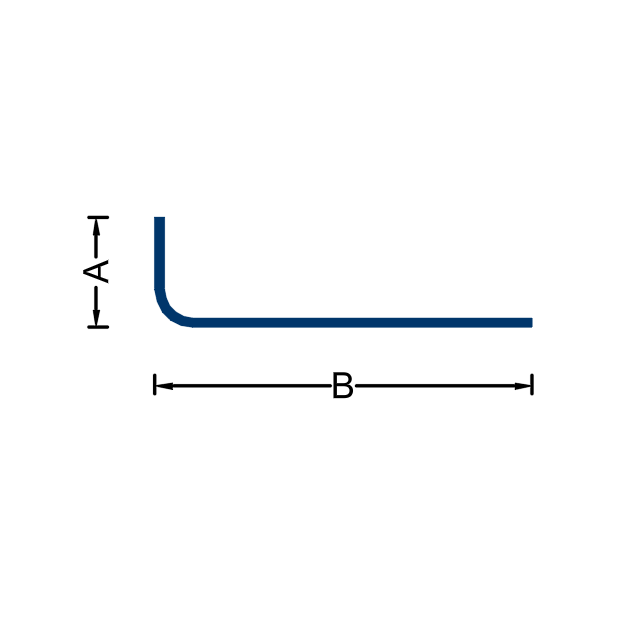
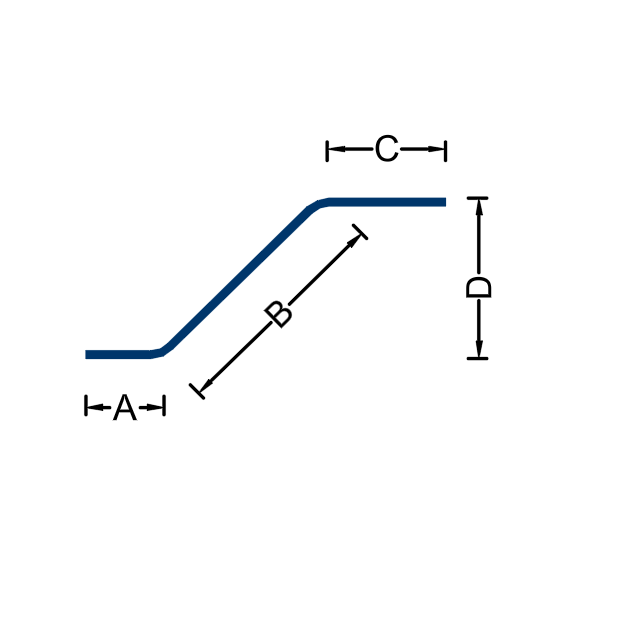
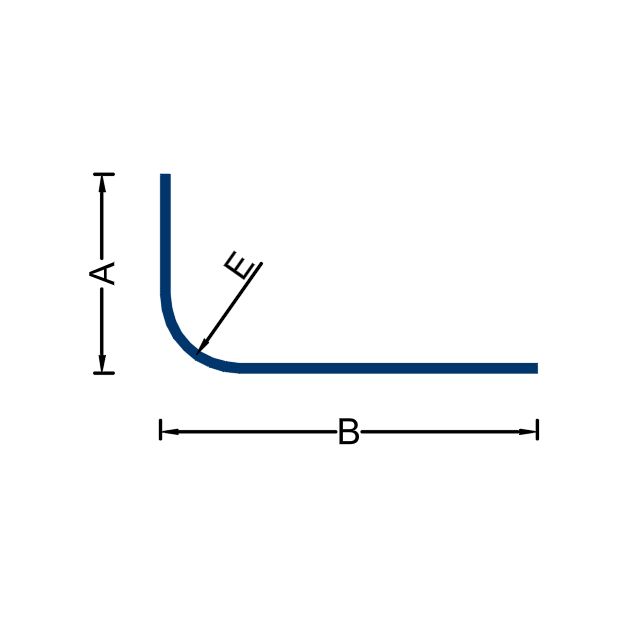
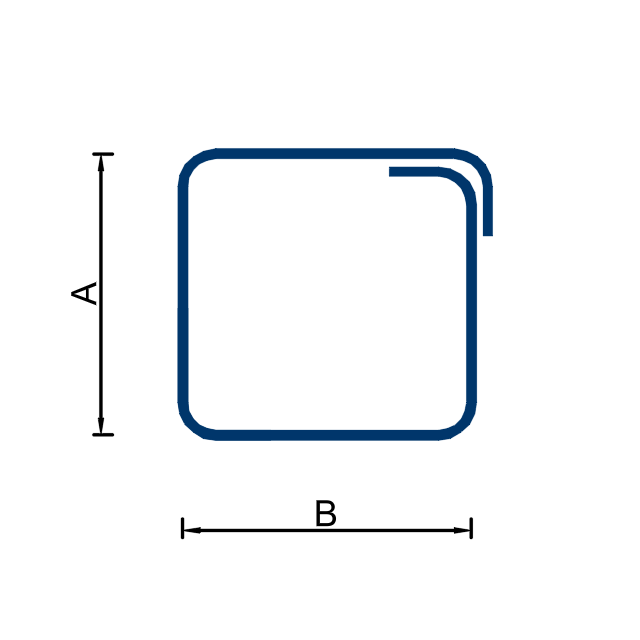
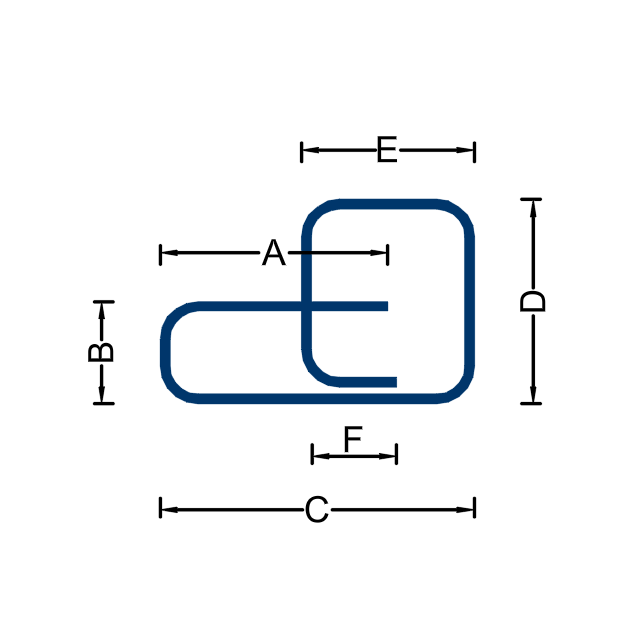
Shape diagrams from the South Africa library
Use Shape Legend to create a visual reference for the shape codes printed in your bending schedules, keeping the reinforcement information clear for the people reading the drawings.
Save the decisions you repeat. Automate the placement. Make the adjustments your project needs. Bring the model and its documentation together with Elemento.
Looking for a particular command? Open a ribbon panel below to see what it does.
Turn picked points into a numbered, coordinated setting-out table that stays up to date.
Cut a section without touching the section tool twice.
Revit’s own manual bar placement, on the Elemento tab where the rest of your rebar work lives.
Nine generators that build a complete cage from a member you already modelled. Re-applying replaces what the tool made, so nothing duplicates.
A register of everything Elemento has reinforced, and the fastest way back into it.
Cut, lap and split bars that are already in the model.
Get a reinforced model back under control — view-wide, or scoped to one picked member.
Read the model at a glance by colouring the steel.
Make a congested section into something you can actually annotate.
The chain from model to workshop: annotate the bars, schedule them, lay them out on sheets and send them out.
Get a fresh project ready, and get families back out of it.
Compatibility, supported geometry and the settings you can reuse.
Elemento is built for Autodesk Revit 2027 on 64-bit Windows.
Yes. Slabs / Floors supports planar slabs up to 45°, including slopes made with a slope arrow or shape editing. Spacing is measured along the slab plane. Multi-plane and warped slabs are not supported. The separate Slab / Wall Opening tool supports level slabs only.
Yes. Save named presets, then use Preset Manager to export and import them. Import Standards supplies the project resources they need. Missing bar types are flagged so you can import them or choose a replacement.
Elemento creates Revit reinforcement elements. Slabs / Floors offers Standard, Free-form and Smart Sets creation modes. Smart Sets give varying sets editable spacing and require Elemento to be installed for those sets to regenerate.
The South Africa template supplies SANS 282 reinforcement resources through Import Standards. Review the detailing settings and resulting schedules against your project requirements.